Home, navigation, and profile
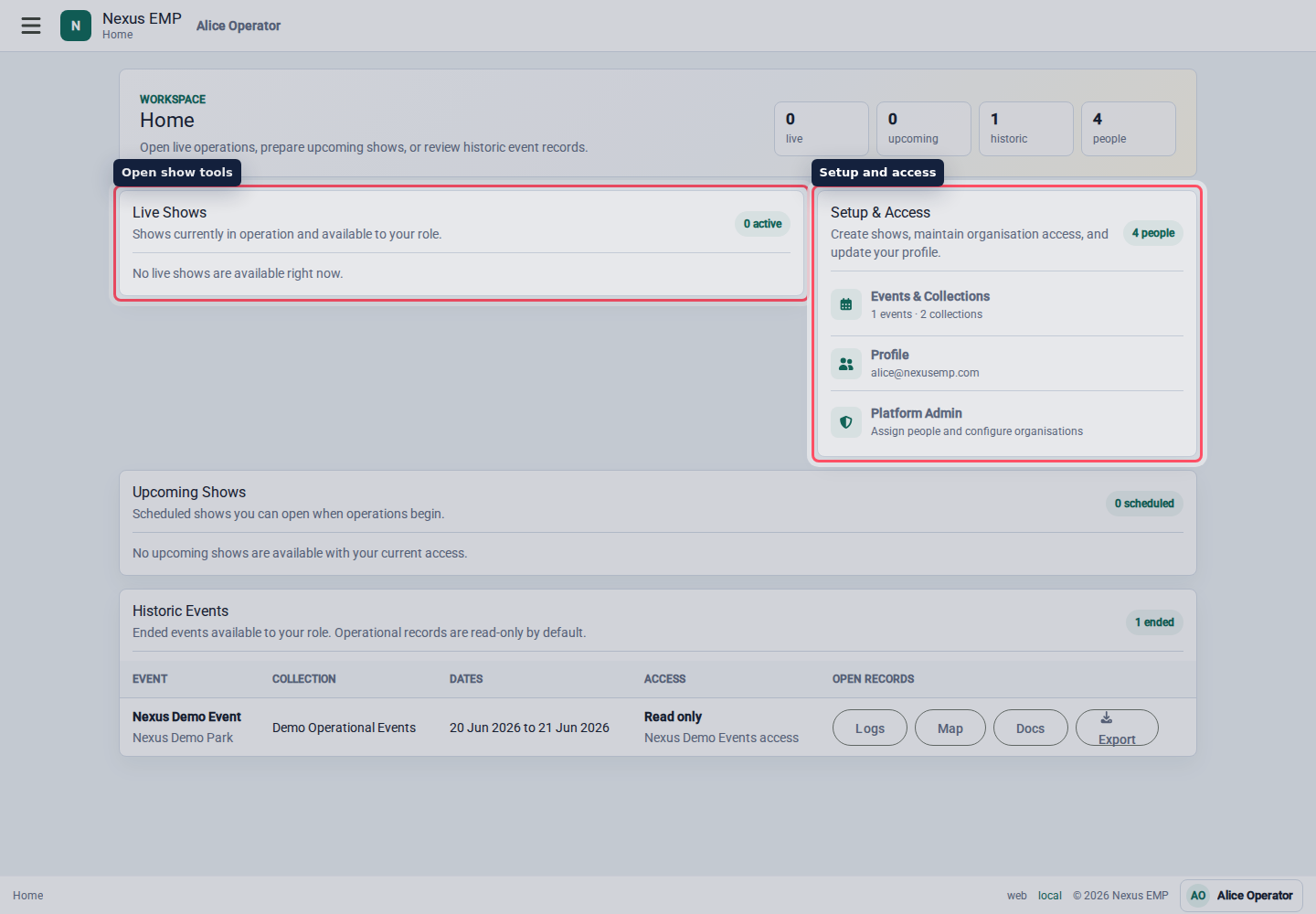
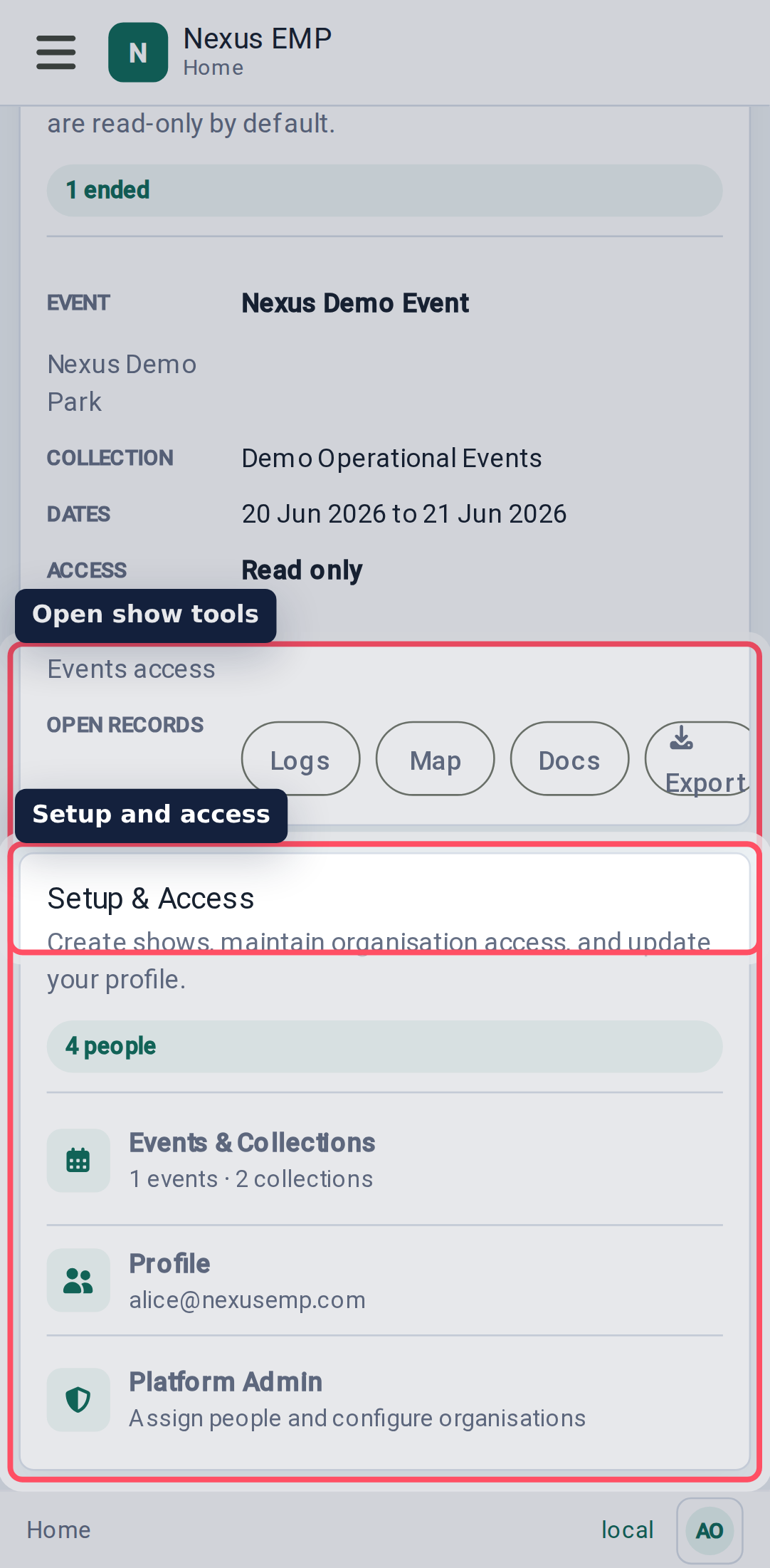
The Home page is your launchpad. It shows live shows, upcoming shows, historic events, and setup links you are allowed to use.
Open a live show
Use the Live Shows cards when the event is running. Each card shows the event location, dates, collection, and the tools available to your role.
The direct buttons are intentionally plain:
- Event Control opens the live log stack.
- Dashboard opens the passive control-room display.
- Mapping opens the event map.
- Documents opens shared event files.
If an event is upcoming rather than live, it appears in the upcoming table. You can still open tools when your role allows it, which is useful for rehearsals.
Live, upcoming, and historic events are loaded a page at a time. Use Previous and Next to move through the events available to your account. Nexus checks event access and module status for each returned event, and checks the selected event again when you open a direct link.
Open a historic event
An event moves to Historic Events after its end date. The list contains only events you can access and shows the same module shortcuts your role permits.
Historic events are read-only by default. You can:
- search, open, and print Event Control logs;
- view event maps and their published layers;
- view and download documents;
- export Event Control records.
Write controls are disabled, but retained records remain visible. If an event administrator has explicitly enabled historic writes for a correction period, the historic list labels that exception.
Use the menu
The menu groups pages by intent:
- Home returns to the workspace summary.
- Show contains live pages for the currently routed event.
- Configure contains setup pages for organisations, people, events, access, settings, mapping, and audit.
- Platform Admin appears only for platform administrators and uses the same setup tools with wider scope.
For live work, keep one browser tab on Event Control and open Mapping or Documents in another tab if your screen space allows it. That keeps the log stack stable during busy periods.
Keyboard navigation
Press Tab from the start of the page to reveal Skip to main content, then press Enter to move past the header. Open navigation with Enter or Space on either navigation button. Focus starts on Close navigation; Tab and Shift+Tab cycle through the panel. Escape closes the panel and returns focus to the button that opened it. Choosing a page moves focus to its main content. In-page Event Control interactions keep their own focus.
The footer build label opens build details with focus on its close button. Tab stays within build details until you close it; Escape returns focus to the build label. These keyboard controls also work with a keyboard connected to a phone or tablet.
Profile and preferences
The account menu is in the footer. Use it to open profile details, manage passkeys, change theme preference, or sign out. Theme preference is a personal setting, not an event setting.
On the profile page, Sign-in security lists the passkeys on your account. Add a passkey when the browser supports it, rename passkeys from the inline form, or remove a passkey you no longer use. Email magic links remain available.
On the web app, Nexus remembers your passwordless sign-in for up to 20 hours. In a normal browser profile, you can leave the tab in the background, close it, or close the browser and return during that period without signing in again. After 20 hours, Nexus asks you to verify with a passkey or email before continuing. Signing out ends the remembered session immediately. Private browsing or a device policy that clears cookies may end it sooner.
If the browser loses the secure callback state during a background session check, Nexus limits the automatic check to one redirect instead of repeatedly reloading the tab. Allow site data for Nexus EMP, reload the page, and sign in again. If it happens again, check the browser profile's privacy settings, extensions, or managed-device policy.
The build label in the footer opens diagnostics. It is mainly for support: it shows build identity, runtime, endpoints, and access details.
Native app UI updates
In an installed mobile or desktop app, open Profile → Updates to check for a UI update and choose Apply update. Startup checks happen automatically: mobile apps can download a compatible bundle in the background, while desktop apps check availability. These background checks never restart an active session.
After preparation, a confirmation asks you to save your work before choosing Apply and restart. Unsaved work may be lost when the app restarts. Choose Not now to continue working; you can return to Updates later. During activation the confirmation stays open and editing is blocked until restart. If activation fails, it shows the error and lets you retry or return to work.
A desktop download can take place after confirmation because older desktop shells combine downloading and activation. If your native shell is too old, install the required native app update first. UI updates alone do not require a new app-store release.
Access across organisations
Your event tools combine all your valid event assignments automatically. You can represent several companies at one show without switching a working mode. A company assignment does not make you a permanent member of that company. Individual guest represents your own attendance.
Event Control combines the agency access granted by each complete organisation-and-role assignment. An old working-context link opens the available show workspace automatically.